Shenzhen Xingtong IOT Technology Co., Ltd.
Barcode Scanner Manufacturer with development & Invention ability

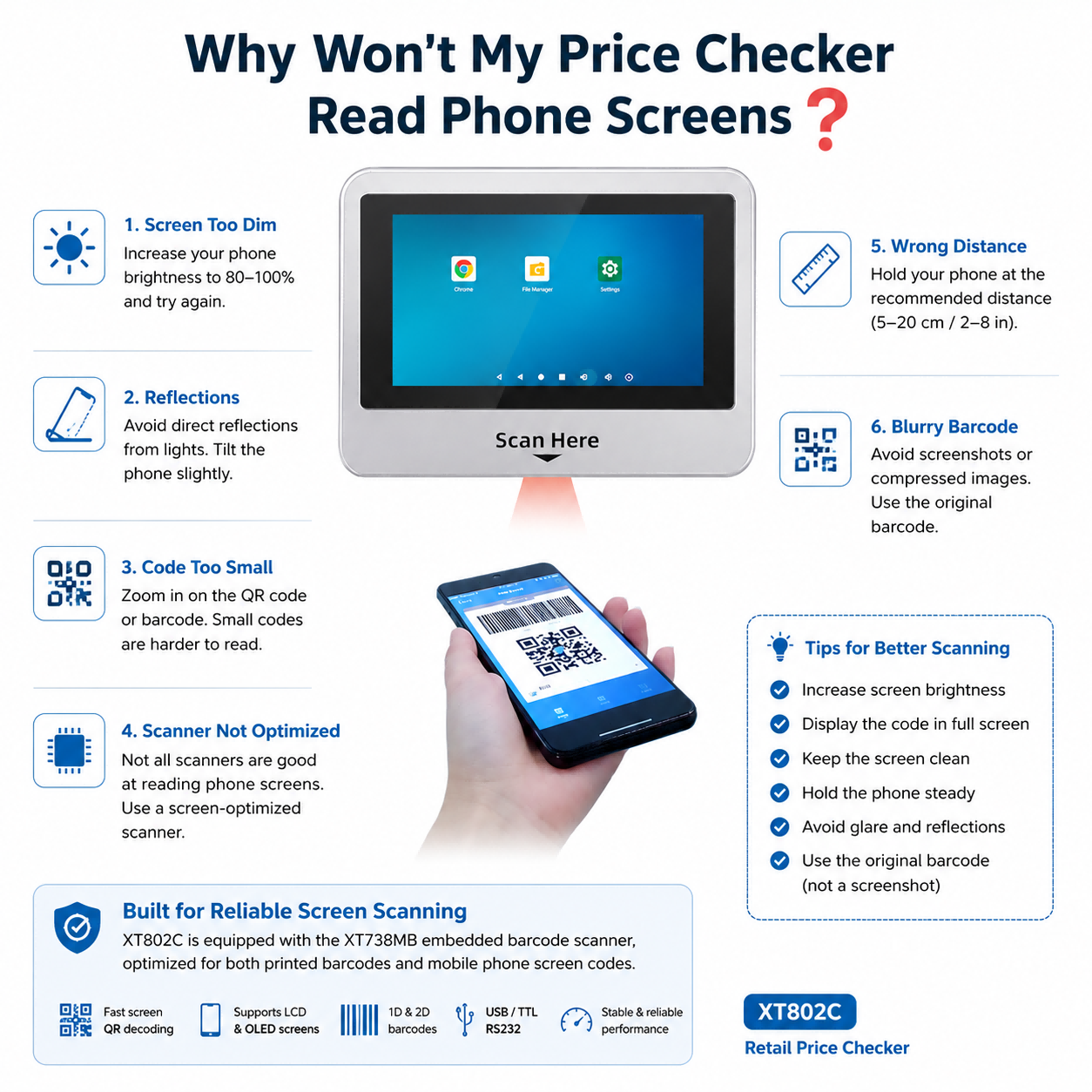
Your price checker reads printed barcodes perfectly, but struggles with QR codes displayed on smartphones. Why does this happen?
In most cases, the issue isn't the barcode itself—it's related to screen brightness, reflections, barcode quality, or scanner performance. Understanding these factors can help improve scanning reliability and create a better customer experience.
1. The Phone Screen Is Too Dim
Many smartphones automatically reduce screen brightness to save battery power.
A dim display lowers the contrast between the barcode and the background, making image capture more difficult.
Try this first:
Increase screen brightness to 80–100%
Disable automatic brightness adjustment during testing
Display the barcode in full-screen mode
Higher brightness generally improves decoding speed.
2. Screen Reflections Affect Image Capture
Retail environments often have bright ceiling lights that create reflections on phone screens.
If the scanner captures the reflection instead of the barcode, decoding may fail.
Possible solutions:
Hold the phone at a slight angle
Avoid direct reflections from overhead lighting
Keep the phone steady while scanning
Even a small adjustment can significantly improve recognition.
3. The QR Code Is Too Small
Many loyalty apps display compact QR codes to leave room for additional information.
Although they look clear to the human eye, they may contain a high density of data.
For better readability:
Zoom in on the barcode whenever possible
Avoid screenshots with reduced resolution
Use the original barcode generated by the application
4. The Scanner Is Not Optimized for Screen Reading
Not every barcode scanner performs equally well with mobile phone displays.
A scanner designed only for printed labels may experience difficulty reading:
LCD screens
OLED screens
Low-contrast images
High-density QR Codes
For self-service retail applications, choosing a scanner that is optimized for screen barcode decoding is essential.
5. The Scanning Distance Is Incorrect
Customers often place their phones either too close or too far from the scan window.
Most embedded barcode scanners provide the best performance within a specific reading range.
Encouraging users to position the phone naturally beneath the scan window can improve scanning consistency and reduce repeated attempts.
6. The Barcode Image Is Blurry
Sometimes the issue isn't the scanner at all.
The barcode itself may have been compressed by:
Messaging applications
Screenshots
Low-resolution images
Social media sharing
Whenever possible, customers should present the original barcode generated by the retailer's app instead of an image copied from another source.
A Better Scanner Makes a Difference
The XT738MB Embedded Barcode Scanner Module, integrated into the XTIOT XT802C Retail Price Checker, is designed to provide reliable performance when reading both printed barcodes and mobile phone screen barcodes.
Key Advantages
Optimized for LCD and OLED screen decoding
Fast recognition of mobile QR codes
Reliable reading under different screen brightness levels
Supports QR Code, Data Matrix, PDF417, Code 128, EAN/UPC, and more
USB, TTL, and RS232 interfaces
Compact design for OEM integration
By selecting a scanner engineered for mobile barcode applications, retailers can reduce scan failures and improve the overall self-service experience.
Tips for Retailers
To achieve the best scanning performance:
Use a scanner designed for mobile phone barcodes
Maintain adequate lighting around the device
Keep the scanner window clean
Encourage customers to increase screen brightness
Display barcodes in full-screen mode
Avoid heavily compressed barcode images
Small improvements in the scanning environment can significantly enhance customer satisfaction.
Conclusion
Most phone screen scanning problems are not caused by the barcode itself. They are usually related to screen brightness, reflections, barcode size, image quality, or the scanner's decoding capability.
For retail self-service terminals, selecting a professional scan engine such as the XT738MB, combined with the XT802C Price Checker, helps ensure fast and reliable barcode recognition from both paper labels and mobile phone screens.


